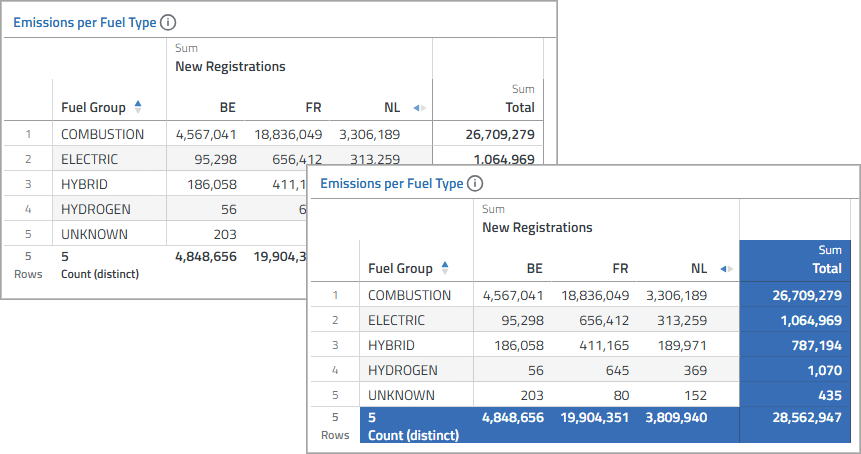
Table Designs for Table Views
To highlight specific values in a table column, users can highlight the table cells using colors and symbols.
However, the table design, which defines the background color for the grand totals and the subtotals, for example, cannot be changed by users by default. To enable users to change the table design, you can provide your own table designs.
For a table view, users can select a table design in the Designer.
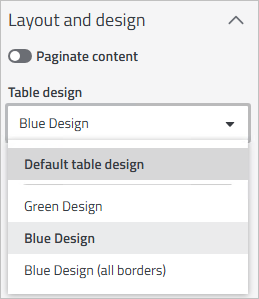
You can use a table design to format the following properties in the table view:
-
Background color for grand totals (default is white)
-
Background color for subtotals (default is white)
-
Highlighting of borders: all or only specific (default)
The settings for a table design are also taken into account when exporting to Excel. If no custom table designs are configured, the default Cadenza-internal table design is automatically used for the table display and Excel export.
Required Configuration
The table designs configuration for table views is available by default and does not require a specific Cadenza feature to be enabled, but requires the following configuration:
-
A valid workbooktable Configuration must exist.
Additional requirements for providing table designs are described in the user documentation.
To provide table designs, the workbooktable Configuration must look like the following example:
-
XML
-
YAML
-
Environment Variables
workbooktable-config.xml configuration file<workbookTableConfiguration>
<tableStyles>
<tableStyle id="green">
<printName>Green Design</printName>
<grandTotal>
<backgroundColor>#57af64</backgroundColor>
</grandTotal>
<columnSubtotal>
<backgroundColor>#9dd394</backgroundColor>
</columnSubtotal>
<rowSubtotal>
<backgroundColor>#d5edcd</backgroundColor>
</rowSubtotal>
<borders>SPECIFIC</borders>
</tableStyle>
<tableStyle id="blue">
<printName>Blue Design</printName>
<grandTotal>
<backgroundColor>#386eb5</backgroundColor>
</grandTotal>
<columnSubtotal>
<backgroundColor>#7bb0d6</backgroundColor>
</columnSubtotal>
<rowSubtotal>
<backgroundColor>#c6d9ed</backgroundColor>
</rowSubtotal>
<borders>SPECIFIC</borders>
</tableStyle>
<tableStyle id="bluewithborders">
<printName>Blue Design (all borders)</printName>
<grandTotal>
<backgroundColor>#386eb5</backgroundColor>
</grandTotal>
<columnSubtotal>
<backgroundColor>#7bb0d6</backgroundColor>
</columnSubtotal>
<rowSubtotal>
<backgroundColor>#c6d9ed</backgroundColor>
</rowSubtotal>
<borders>ALL</borders>
</tableStyle>
</tableStyles>
</workbookTableConfiguration>myConfig.yamlcadenzaconfig:
...
workbooktable:
tableStyles:
- printName: Green Design
grandTotal:
backgroundColor: #57af64
columnSubtotal:
backgroundColor: #9dd394
rowSubtotal:
backgroundColor: #d5edcd
borders: SPECIFIC
id: green
- printName: Blue Design
grandTotal:
backgroundColor: #386eb5
columnSubtotal:
backgroundColor: #7bb0d6
rowSubtotal:
backgroundColor: #c6d9ed
borders: SPECIFIC
id: blue
- printName: Blue Design (all borders)
grandTotal:
backgroundColor: #386eb5
columnSubtotal:
backgroundColor: #7bb0d6
rowSubtotal:
backgroundColor: #c6d9ed<
borders: ALL
id: bluewithborders
...